Add To Library…: Difference between revisions
No edit summary |
2F2A20496D706F7274696E67207072652D6578697374696E67204D50332B472C205A69702C20517569636B54696D652C204D5045472C206B61722C206D696469202A2F |
||
| Line 1: | Line 1: | ||
== Importing pre-existing MP3+G, Zip, QuickTime, MPEG, kar, midi == | == Importing pre-existing MP3+G, Zip, QuickTime, MPEG, kar, midi == | ||
Note: When you use the "Add to library..." function, presently kJams does NOT copy the files into your library. That means, you MUST have your songs stored where you want them to permanently reside. You can NOT move your songs once kJams imports them (unless you [[Consolidating|know what you are doing]]). They can be on an external volume, but the volume must be online for kJams to be able to play them.<br> | |||
<br> | |||
In the following explanation, I am going to use these conventions:<br> | In the following explanation, I am going to use these conventions:<br> | ||
R - artist name<br> | R - artist name<br> | ||
| Line 5: | Line 7: | ||
L - album name<br> | L - album name<br> | ||
T - track number<br> | T - track number<br> | ||
/ - stands for "folder named < | /x/ - stands for "folder named <x>" (without the brackets), eg: "/R/" is a folder who's name is the artist's name, or "/L/" is a folder who's name is the album name. | ||
Okay. As you know, pre existing songs can be named a variety of ways. eg: | Okay. As you know, pre existing songs can be named a variety of ways. eg: | ||
| Line 15: | Line 17: | ||
Adams, Bryan - Cuts Like A Knife - SC-1.zip<br> | Adams, Bryan - Cuts Like A Knife - SC-1.zip<br> | ||
Now, the problem is, it takes a human to interpret these names. Some are laid out "L-T - S - R.xxx", some are "L-T - R - S.xxx", some could be "T S.xxx. Some songs have "pretty" names in the names of the folders enclosing the song! For kJams to "get it" about how to interpret them, you will need to pre-sort your song files into folders where the names have a similar format. EG: put all the files who's names are "L-T - S - R.xxx" in one folder, and all those with "L-T - R - S.xxx" in a separate folder. See, the kJams "Add to Library" function assumes that all files in a folder have the same name format, otherwise it would ask you to interpret every single file. So just pre-sort your library into sub folders. | Now, the problem is, it takes a human to interpret these names. Some are laid out "L-T - S - R.xxx", some are "L-T - R - S.xxx", some could be "T S.xxx. Some songs have "pretty" names in the names of the folders enclosing the song! For kJams to "get it" about how to interpret them, you will need to pre-sort your song files into folders where the names have a similar format. EG: put all the files who's names are "L-T - S - R.xxx" in one folder, and all those with "L-T - R - S.xxx" in a separate folder. See, the kJams "Add to Library" function assumes that all files in a folder have the same name format, otherwise it would ask you to interpret every single file. By pre-sorting, you're saving yourself the hassle (later) of interpreting every single file, you only have to interpret folders. So just pre-sort your library into sub folders. | ||
Another convention is to use the folder hierarchy to store meta info. EG: "/R/S/L-T.cdg" is common, or even "/R/S/L-T - S - A.cdg" or "/R/S/L-T - A - S.cdg". This means there is a folder who's name is the artist name, inside that is a folder who's name is the song name, inside that are the MP3+G files or the zip files that match that artist/song (could be more than one type). | |||
Another convention | |||
http://www.kjams.com/screenshots/lib1.gif | http://www.kjams.com/screenshots/lib1.gif | ||
Here are examples from my library: | Here are examples from my library: | ||
In the above picture, | In the above picture, I've created a "More Music" folder. This could be your external HD filled with songs. But inside that, i've created a folder called "zip standard", could be called anything, it just separates the zip files from the unzipped files. Inside "zip", here's the big secret: make new folders that correspond to the types of songs in your library. I found that I had these three types of names: LTRS, LTSR, and RSLT, I then sorted my entire library into these three folders. The following show examples of the other two folders: | ||
http://www.kjams.com/screenshots/lib2.gif | http://www.kjams.com/screenshots/lib2.gif | ||
| Line 38: | Line 38: | ||
http://www.kjams.com/screenshots/lib4.gif | http://www.kjams.com/screenshots/lib4.gif | ||
After you have sorted your library like the above, it should only take four | After you have sorted your library like the above, if you only have four types of songs, it should only take four interpretations to import your entire library. You may want to trash your "kJams Library" folder to start fresh. Then launch kJams and go "File->Add to Library..." and navigate to where your external music lives. Next you'll see: | ||
==Song Name Interpretation Dialog== | |||
http://www.kjams.com/screenshots/interpret. | http://www.kjams.com/screenshots/interpret.gif | ||
More info coming soon on the new dialog. | |||
Revision as of 03:44, 1 August 2006
Importing pre-existing MP3+G, Zip, QuickTime, MPEG, kar, midi
Note: When you use the "Add to library..." function, presently kJams does NOT copy the files into your library. That means, you MUST have your songs stored where you want them to permanently reside. You can NOT move your songs once kJams imports them (unless you know what you are doing). They can be on an external volume, but the volume must be online for kJams to be able to play them.
In the following explanation, I am going to use these conventions:
R - artist name
S - song name
L - album name
T - track number
/x/ - stands for "folder named <x>" (without the brackets), eg: "/R/" is a folder who's name is the artist's name, or "/L/" is a folder who's name is the album name.
Okay. As you know, pre existing songs can be named a variety of ways. eg:
LEG086-07 - U2 - Hold Me, Thrill Me, Kiss Me, Kill Me.zip
SC8397-13.zip
AH2003-03 - Pink Floyd - Time.zip
BL21-04_-_Every_Breath_You_Take_-_Police,_The
Adams, Bryan - Cuts Like A Knife - SC-1.zip
Now, the problem is, it takes a human to interpret these names. Some are laid out "L-T - S - R.xxx", some are "L-T - R - S.xxx", some could be "T S.xxx. Some songs have "pretty" names in the names of the folders enclosing the song! For kJams to "get it" about how to interpret them, you will need to pre-sort your song files into folders where the names have a similar format. EG: put all the files who's names are "L-T - S - R.xxx" in one folder, and all those with "L-T - R - S.xxx" in a separate folder. See, the kJams "Add to Library" function assumes that all files in a folder have the same name format, otherwise it would ask you to interpret every single file. By pre-sorting, you're saving yourself the hassle (later) of interpreting every single file, you only have to interpret folders. So just pre-sort your library into sub folders.
Another convention is to use the folder hierarchy to store meta info. EG: "/R/S/L-T.cdg" is common, or even "/R/S/L-T - S - A.cdg" or "/R/S/L-T - A - S.cdg". This means there is a folder who's name is the artist name, inside that is a folder who's name is the song name, inside that are the MP3+G files or the zip files that match that artist/song (could be more than one type).

Here are examples from my library: In the above picture, I've created a "More Music" folder. This could be your external HD filled with songs. But inside that, i've created a folder called "zip standard", could be called anything, it just separates the zip files from the unzipped files. Inside "zip", here's the big secret: make new folders that correspond to the types of songs in your library. I found that I had these three types of names: LTRS, LTSR, and RSLT, I then sorted my entire library into these three folders. The following show examples of the other two folders:

Above is the "Album-Track-Song-Artist" group of songs

And finally, above shows songs with names like "Artist-Song-Album-Track"
Below, you can see I've also created a folder for unzipped files. The format should be similar to what you see here.

After you have sorted your library like the above, if you only have four types of songs, it should only take four interpretations to import your entire library. You may want to trash your "kJams Library" folder to start fresh. Then launch kJams and go "File->Add to Library..." and navigate to where your external music lives. Next you'll see:
Song Name Interpretation Dialog
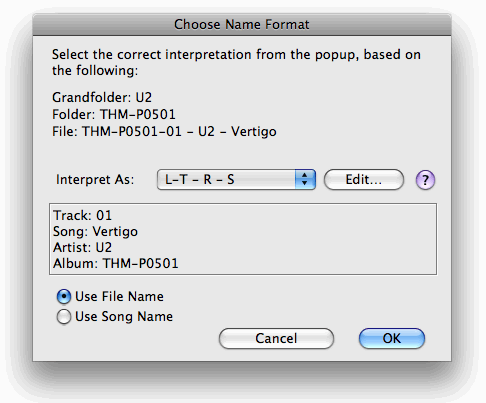
More info coming soon on the new dialog.