Installing/64bit Alpha: Difference between revisions
Jump to navigation
Jump to search
| Line 34: | Line 34: | ||
==Download Links== | ==Download Links== | ||
<googa>https://www.dropbox.com/s/ | <googa>https://www.dropbox.com/s/197tc6k3ch1n6xc/kJamsLite_x64.zip?dl=1|Lite Mac|/downloads/64_Lite</googa>, | ||
<googa>https://www.dropbox.com/s/ | <googa>https://www.dropbox.com/s/0nheveq7fgxs6s9/kJamsPro_x64.zip?dl=1|Pro Mac|/downloads/64_Pro</googa>, | ||
<googa>https://www.dropbox.com/s/ | <googa>https://www.dropbox.com/s/3x2zsui1iwxhh1q/kJams2_x64.zip?dl=1|2 Mac|/downloads/64_2</googa>, | ||
<googa>https://www.dropbox.com/s/ | <googa>https://www.dropbox.com/s/l3xxnbicpy3l8x2/kJamsLite_x64.zip?dl=1|Lite Win|/downloads/64_Lite_Win</googa>, | ||
<googa>https://www.dropbox.com/s/ | <googa>https://www.dropbox.com/s/t5a76qknhmbw1wy/kJamsPro_x64.zip?dl=1|Pro Win|/downloads/64_Pro_Win</googa> | ||
<googa>https://www.dropbox.com/s/ | <googa>https://www.dropbox.com/s/amoopx35nf54tc1/kJams2_x64.zip?dl=1|2 Win|/downloads/64_2_Win</googa> | ||
Revision as of 14:41, 25 June 2021
The Alpha version does not come with an installer, it's just a Zip file.
If you just download it from the web site, you first must unzip it.
Mac Instructions
- Unzip the file if that hasn't already been done
- Drag the app onto the "Desktop" (not the "Applications" folder, cuz you don't want to replace the 32bit version which lives there)
- If the Finder asks if you want to replace the one that is there, say yes. This is where you launch kJams 64bit from.
- First time only:
- go to apple->system prefs->privacy & security
- click the lock icon, enter your password, hit okay
- click the "privacy" tab, on the left, scroll down to "Full disk access"
- drag the app from the finder into the list on the right
- double click the kJams app icon
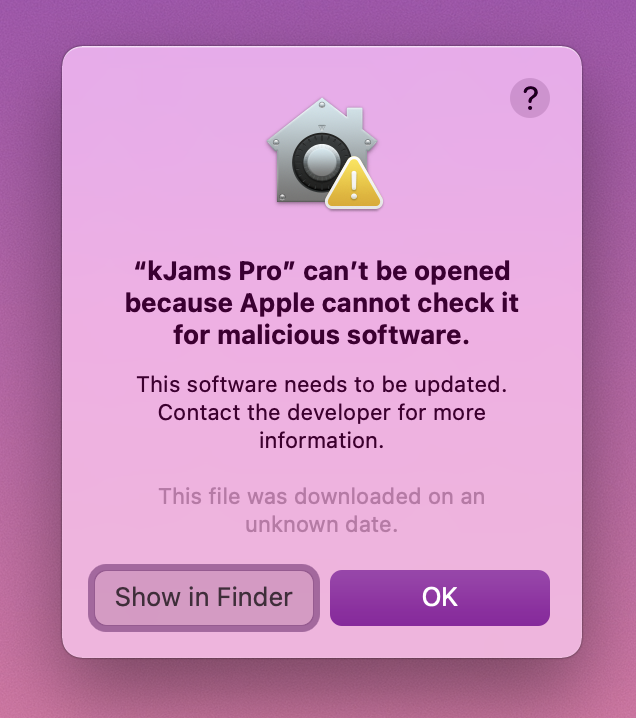
- it will fail to launch, claiming that the OS can't test for malicious software, click ok
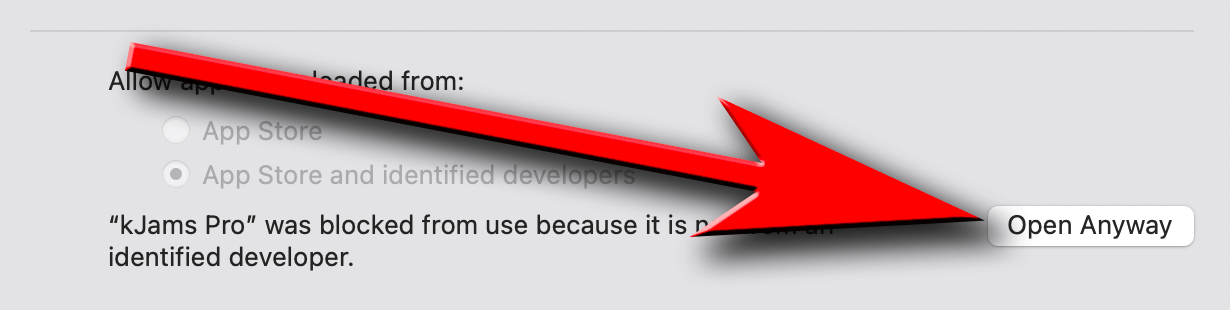
- in the system prefs panel, click back on the "general" tab
- click on the "Open Anyway" button, and kJams will re-open
- if you get a zillion asserts about "GetCatInfoBulk" force quit, let me know, and try again
Windows Instructions
- Unzip the file if that hasn't already been done
- Drag the app into the "Program Files" folder
- When Windows Explorer says there are files with the same name, click "Replace"
- First time only:
- To create a "Shortcut File" follow these instructions.
- Install the K-Lite Codec pack for h.264 playback
- When you run, kJams will ask you to install Bonjour Printer service After you install that, you must enable the service manually.
- In the OS search bar, type "services", and you'll see an app called "Services", click it.
- in the list that shows, type "bonj" and it will scroll down to reveal "Bonjour Service"
- right-click it and pick "Properties"
- in the "Startup Type" menu pick "Automatic"
- if the "Service Status" is not "Running", click the "Start" button