Full Disk Access
kJams requires "Full Disk Access" to function properly. Before you run kJams for the first time, please refer to this screen shot, and follow the below steps:
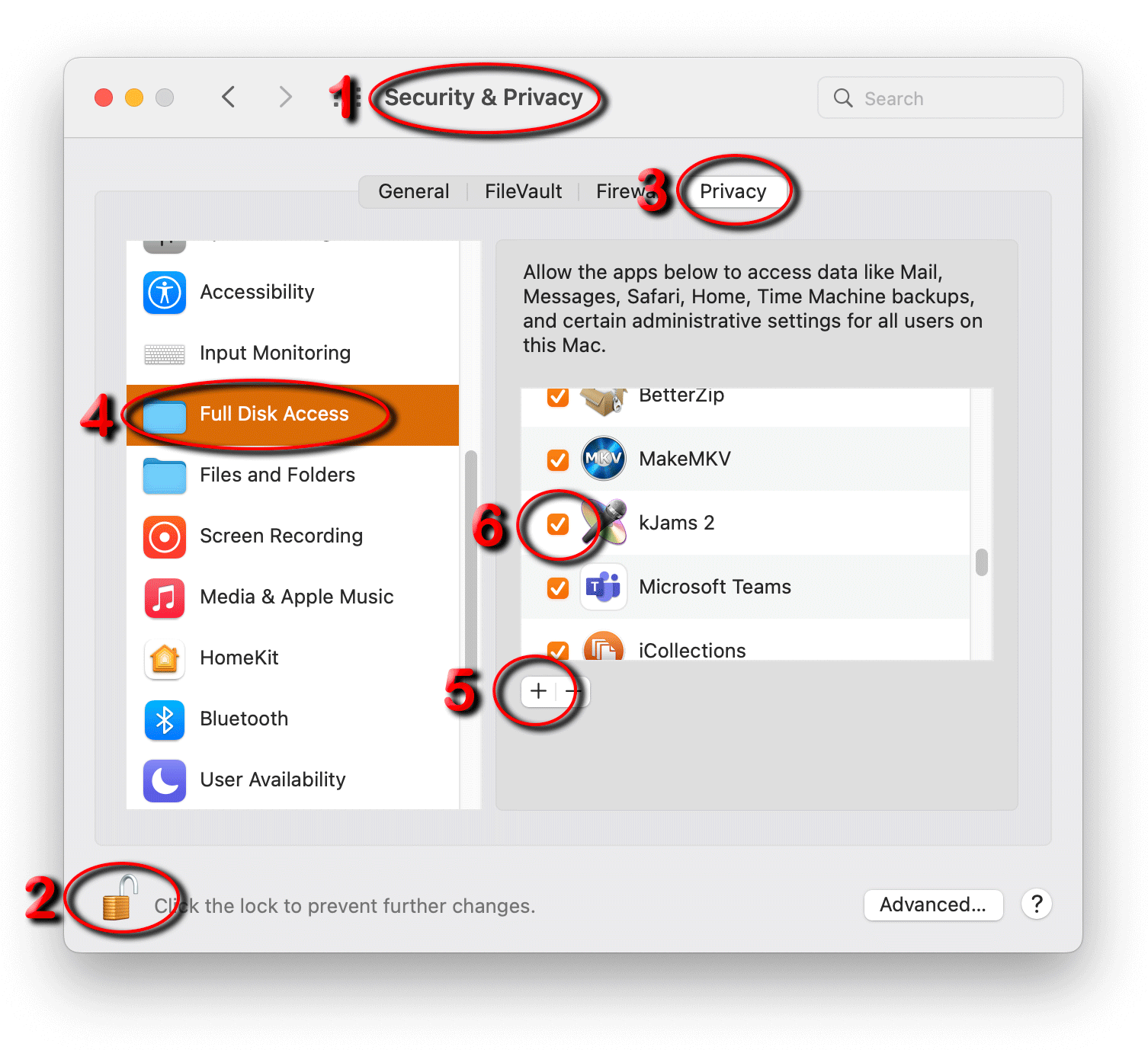
- Go to the Apple Menu and pick "System Preferences", and then select "Security and Privacy"
- Click the little Lock icon in the lower left, then enter your password
- Click the tab (across the top of the window pane) with the title "Privacy"
- In the list on the left, scroll down until you see "Full Disk Access"
- in the list on the right, if you don't see "kJams" listed, click the "+" button below that list, and find and select the kJams application icon.
- Ensure the checkbox to the left of the kJams icon is checked
That's it! Now you can run kJams!