Hosted Purchase: Difference between revisions
Jump to navigation
Jump to search
add PayPal email mismatch link |
|||
| (One intermediate revision by one other user not shown) | |||
| Line 11: | Line 11: | ||
# go back to kJams and it should automatically self-register! You're Done!! | # go back to kJams and it should automatically self-register! You're Done!! | ||
==If purchase succeeded | ==If purchase succeeded but something went wrong with self-register== | ||
# go to your email and find your serial number (it was automatically sent to you) | # go to your email and find your serial number (it was automatically sent to you) | ||
# select it, then right click it or go to the Edit menu, and pick Copy | # select it, then right click it or go to the Edit menu, and pick Copy | ||
| Line 20: | Line 20: | ||
You should be good to go! | You should be good to go! | ||
==If you paid with PayPal== | |||
PayPal often uses a different email than the one in kJams Preferences. If self-activation failed and the dialog asked "Did you use PayPal?", see [[PayPal Email]]. | |||
If you have trouble, [[Enter_Serial_Number|see this article]]. | If you have trouble, [[Enter_Serial_Number|see this article]]. | ||
Latest revision as of 20:40, 9 September 2026
You have been sent here to purchase kJams or one of its plugins.
In another open web browser tab, with the title "Checkout" (the URL being "pay.paddle.io"), you should see the purchase window, it looks like this:
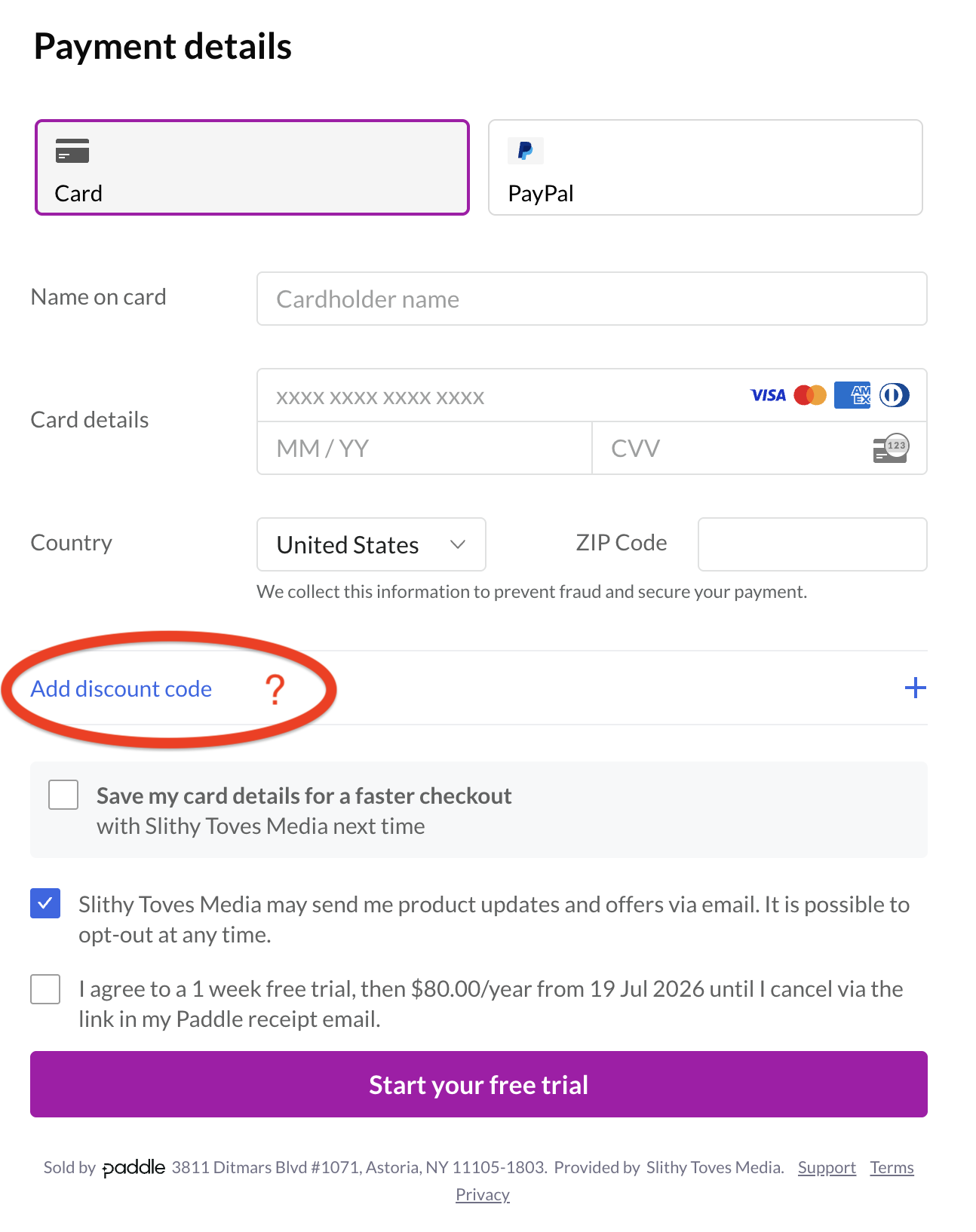
You can change the language of the user interface by clicking the button (link) at the lower left.
Follow these steps
- in general, there are no coupons, but if you HAVE a coupon (for like a bug fix), click "Add discount code" and paste in your coupon. (See red circle in above screen shot)
- complete the purchase, then you can close the web browser tab
- go back to kJams and it should automatically self-register! You're Done!!
If purchase succeeded but something went wrong with self-register
- go to your email and find your serial number (it was automatically sent to you)
- select it, then right click it or go to the Edit menu, and pick Copy
- go back to kJams, you should see a dialog asking you to complete the purchase, just hit cancel
- In the Help menu, pick "Enter Serial Number" dialog will come up
- Your serial number should already be showing. If not, right click and paste
- check that it is good, and hit OK!
You should be good to go!
If you paid with PayPal
PayPal often uses a different email than the one in kJams Preferences. If self-activation failed and the dialog asked "Did you use PayPal?", see PayPal Email.
If you have trouble, see this article.