Add To Library…
In addition to letting you rip the CD+G discs you own, kJams will also let you 'import' a library of discs you've already ripped, possibly for a software package which you are replacing with kJams. That process is called "Add To Library..."
Ripping will copy files from a CD onto your hard drive then automatically add them to your library. You only use "Add to Library" when you already have files copied to your hard drive, but kJams does not already know where they are.
You can NOT move your songs once kJams imports them (unless you know what you are doing). You can add song files from an external volume, but that volume must be online for kJams to be able to play them.
(Note for technical people: Keep in mind you can not manually place song files into the "kJams Music" folder before you "Add to Library…" them; you do not 'own' that folder, kJams does. In fact don't mess with that folder at all (You really should understand exactly about this).)
DO NOT go into preferences and change the "kJams Music" folder to point to your folder of already ripped songs. If you do you will cause the world to implode, since that is not what it's for.
After you add any songs to your library, DO NOT MOVE OR RENAME the songs or their containing folders, EVER, using the File system (Finder or Windows Explorer). It's fine to rename things within kJams, because kJams itself keeps track of where the songs are and what they are named. You will cause the universe to implode if you change things out from under the kJams database, using the file system. That means for example:
DO NOT DO THIS: "stick in a USB thumb drive with some files on it, Add it to your library, using "reference", eject the thumb drive" Guess what? the songs is gone. You can't play it any more.
DO NOT DO THIS: "Add a song to the library, using "reference" Then in the finder, rename the folder that the song resides in, or rename the hard drive that it is on, or rename the song file itself." Guess what? The universe will implode.
kJams requires write access to the disk where your music is. If you use an external drive it can NOT be formatted NTFS. If you're not sure, YOU NEED TO CHECK. (Note that this is even true if you have a writable NTFS mount solution, even if it's commercial; kJams itself checks the filesystem type.)
Contents
Copy or Reference?
When you “reference” something, you refer to the original, but when you “copy” something, you make a copy (so now you use the new one, leaving the original behind).
So, if you "reference" songs on an external drive, they will stay there, being used in place, directly from the external drive. The external drive must be present to play the songs.
Or, if you "copy" the songs, they get copied into your "kJams Music" folder (which by default on your internal drive, but may be on an external drive if you have moved it), and the songs are used from that new location.
So, in kJams, when you use the "Add to library..." function, kJams will ask if you want the songs either "copied" or "referenced". If the files are on your desktop or in the downloads folder, your answer will be ignored and the files will always be "Copied". "Referenced" is what you want if you have an external drive filled with your music files, and you want kJams to just use them "in place" (left on the external drive and used from there, the drive must be available for them to work). "Copied" is what you want if you just downloaded some music files from a web site, and they now reside in your downloads folder (they will be copied to your "kJams Music" folder, then you can throw them out from the Downloads folder).
To add songs from an internal drive
- Go to your "kJams" folder (it's in your home-user's Music folder)
- Create a new folder that will hold all of your karaoke music files, if you haven’t already done so. Although your music files can reside anywhere you like, it’s best to create a folder that is dedicated to kJams, within the kJams folder, and then move your music into it.
- Make sure the folder is in the "kJams" folder, but NOT inside the “kJams Music” folder.
- Give the folder a significant name, such as Music Downloads, Free Karaoke, Liesl’s Songs, etc. For this example, we will use "MyKaraoke"
- Move the folder containing your Karaoke songs into your "MyKaraoke" folder (this is called the "Folder you Moved").
- Open kJams.
- Click on File → Add to Library.
- Locate the "Folder you Moved", select it, and click Okay.
- If kJams asks whether to "Copy" or "Reference", pick "Reference"
- If kJams asks whether to use "Tags" or "File Names", click "Tags". This allows kJams to import meta data.
- Wait for the import to finish, then make sure you can see your Activity window, then wait for all the activity to complete (this can take a long time).
- Check that your meta data is all correct (name, artist, album)
- If all the meta data is glommed into the "Song Name" column, you must reinterpret your songs.
To add songs from an external drive
You can either copy the music to your internal drive, following the instructions above, or you can leave your music on your external drive. However, if you do this, the external drive must be connected whenever you use kJams.
To leave your music on the external drive:
- Just start from Step 4 Above
- In Step 6, the "Folder you Moved" is the folder on the external drive that has your Karaoke songs in it
Editing Tags
More than likely, you will need to edit tags (meta data) whenever you acquire music from sources outside of the kJams stores. Click here to learn how to do this. Fixing Tags (Meta Data) in the Library Temp
Do not implode the world
Okay, pay attention. Never, ever move your songs into the “kJams Music” folder. You do not own that folder, kJams does. In fact, don't mess with that folder at all. (You really should understand this). DO NOT go into Preferences and change the kJams Music folder to point to your folder. If you do, you will cause the world to implode.
Once you have added songs to your library, DO NOT MOVE OR RENAME the songs or their folder... EVER. kJams keeps track of where the songs are and what they are named. You will cause the universe to implode if you change things out from under the kJams database. For example, if you (1) download a karaoke song to your desktop, (2) add it to your library, and then (3) delete the song, guess what? The song is gone. Or if you (1) add a song to the library, and then (2) rename the folder that the song resides in, or rename the hard drive that it is on, or rename the song file itself, guess what? The universe has just imploded.
You want more information on the kJams Music Folder? Click away.
One last thing: kJams requires write access to the disk where your music resides. On Mac only, if you use an external drive, it cannot be formatted NTFS. If you're not sure, YOU NEED TO CHECK.
Some technical notes
Acesonic
If you have Acesonic ".cdg" files, these are in fact .bin files with interleaved CDG streams (aka "raw bin" files). Why on earth it is labeled ".cdg" is beyond me, and why they leave the CDG stream interleaved is another technical misnomer, as .CDG files "traditionally" are pre-deinterleaved. Anyway, to add them to kJams, you will first have to rename them to have the ".rbin" file name extension. There are tools for this. After you rename them, just add to library like normal. You can then convert them to whatever format you want. The only problem with this solution is that kJams can't import Acesonic metadata files. To solve this problem, 11rcombs has written PHP script to convert all the metadata from the Acesonic format a format CDPedia can import (a tab-delimited CSV), and complete the required batch-rename. The script can be downloaded at http://rodgercombs.tk/files/acesonic, and is distributed under the WTF Public License.
KMA & WMA
Not supported on Windows. Mac only: Prior to 10.13, these files require the Flip4Mac plugin. Sorry no longer supported.
AVI, DivX, FLV, MKV, GVI, VP6, and VFW
Not supported on Windows. These files require the free Perian plugin
Bin/Cue Pairs
What is it?
A pair of files with .bin and .cue extensions can be added as if it were a CD, making it easy to either rip or burn bin/cue on your mac. Simply "Add to library" the .bin file, and kJams will automatically find the .cue file next to it (it must be named exactly the same, except for the file extension). kJams will then query the freedb for meta data, and mount the BIN file just like it was a CD, then you are free to rip the songs from it. A naked .bin file does not have a corresponding .cue file to go with it, kJams assumes it contains only one song, so it is added directly to the library.
If you want to mount a particular .bin file every time kJams starts up, create a folder called "Mounted Disc Images" in the kJams folder. Put an alias / shortcut to the bin file in that folder.
Tagged Songs
If the songs you are importing are tagged (eg: they have ID3 data, Vorbis Comments, or QuickTime Metadata (or if you've used kJams to Xattr tag them)) then you may simply go "File->Add to Library…", navigate to the root folder, click okay, then click the "Tags" button in the next dialog (if it shows up). kJams will then import everything and you're ready to go.
However if you are importing untagged music, and you hope to glean some meta-data out of the file names directly (and optionally the enclosing folder names) then please read the next section.
Untagged Songs
This works for importing pre-existing Audio+G, Zipped Audio+G, QuickTime, MPEG, naked BIN files
First, make sure you've got preferences->tags->conform song names: set to "L-T - R - S". This is important. You can change it if you know why you want to change it, but i recommend against it 'till you know what you're doing.
In the following explanation, I am going to use these conventions:
R - artist name
S - song name
L - album name
T - track number
I - Ignore this bit of information
/x/ - stands for "folder named <x>" (without the brackets), eg: "/R/" is a folder who's name is the artist's name, or "/L/" is a folder who's name is the album name. To extend the idea, "/R - L/" is a folder who's name contains both the artist and the album, separated by a "space dash space".
Okay. As you know, pre existing songs can be named a variety of ways. eg:
LEG086-07 - U2 - Hold Me, Thrill Me, Kiss Me, Kill Me.zip
SC8397-13.zip
AH2003-03 - Pink Floyd - Time.zip
BL21-04_-_Every_Breath_You_Take_-_Police,_The
Adams, Bryan - Cuts Like A Knife - SC-1.zip
Now, the problem is, it takes a human to interpret these names. Some are laid out "L-T - S - R.xxx", some are "L-T - R - S.xxx", some could be "T S.xxx. Some songs have "pretty" names in the names of the folders enclosing the song!
If you've got all your songs from one source, then they're probably all named the same way. However, if you got your songs from many sources, then you will probably want to sort them into like-minded folders before continuing. If this is the case, you should see below for info on pre-sorting, before cointinuing.
So to get started, just pick File->Add To Library and navigate to the root folder of your songs, select it and hit okay. Go have coffee if you have a lot of songs.
Now, you will spend some time "fixing" songs in batches. Select a group of songs that are similarly broken and right click "Re-interpret names" and pick the right interpretation, or make a new one (with the edit button). Watch the tasks window, after about 10 seconds kJams will attempt to update what is on the disk (renaming the files and updating the tags). Don't get too far ahead of the tasks, you may want to do a batch then let kJams finish pushing the meta out to them and then let it complete saving the database again. Then go on to the next batch.
If you get thru your whole library, and now all the meta is correct, YOU WILL NEVER GO THRU THIS PROCESS AGAIN!! That's because as you went kJams updated the actual files on the disk. If you ever need to rebuild your library from scratch, all the meta is already there, and it will all import in one fell swoop. Yeah!!
Basically this new way lets you do all your work in kJams not in the finder. No sorting necessary. But it helps to read below to understand the reasoning behind this madness.
Click Here to learn more about Reinterpret Names
Song Name Interpretation Dialog
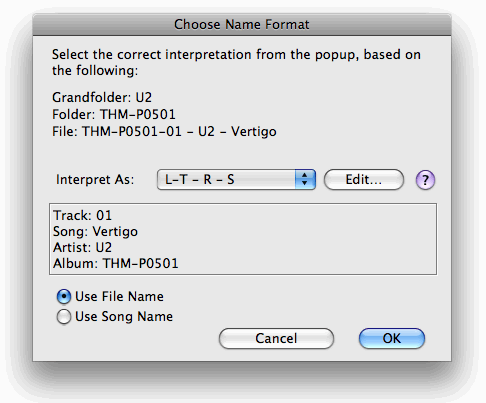
The dialog shows the file name to be interpreted (labeled "File:"), plus the two enclosing folders ("Folder" and "Grandfolder"). The interpretations that are available for the file are shown in the "Interpret As:" popup. The box shows what happens when applying the interpretation to the file (and possibly it's enclosing folders). If there is no interpretation that makes the meta info as shown in the box come out correctly, you can edit what appears in the menu by pressing the Edit... button, which will launch your default text editor (likely TextEdit).
The format of the text file is just the interpretation styles, one per line. The ONLY things you should type into a style are the letters "R", "S", "L", "T", "I", the separator " - " (that's a "space dash space"), or just a plain space " ", or a dash "-", or parentheses: "(" or ")". That's it. If you need something more, let me know. I won't try to predict what will happen if you type something else, you might crash. Anyway, add your new style, then save the file and switch back into kJams, which will update the menu, now you can select the new format you added.
I recommend against using the radio buttons, unless you know what you're doing.
